Installing the PICkit 2 Programmer on Debian Linux
Contents
The PICkit 2 is an old but still very useful programmer for Microchip PIC microcontrollers. For Linux, Microchip ships the pk2cmd command-line tool as source code only, so you have to build it yourself. The steps below were tested on Debian 13 (Trixie, gcc 14) and also work on Debian 10–12 and Debian-based distributions (Ubuntu, Mint, Raspberry Pi OS).
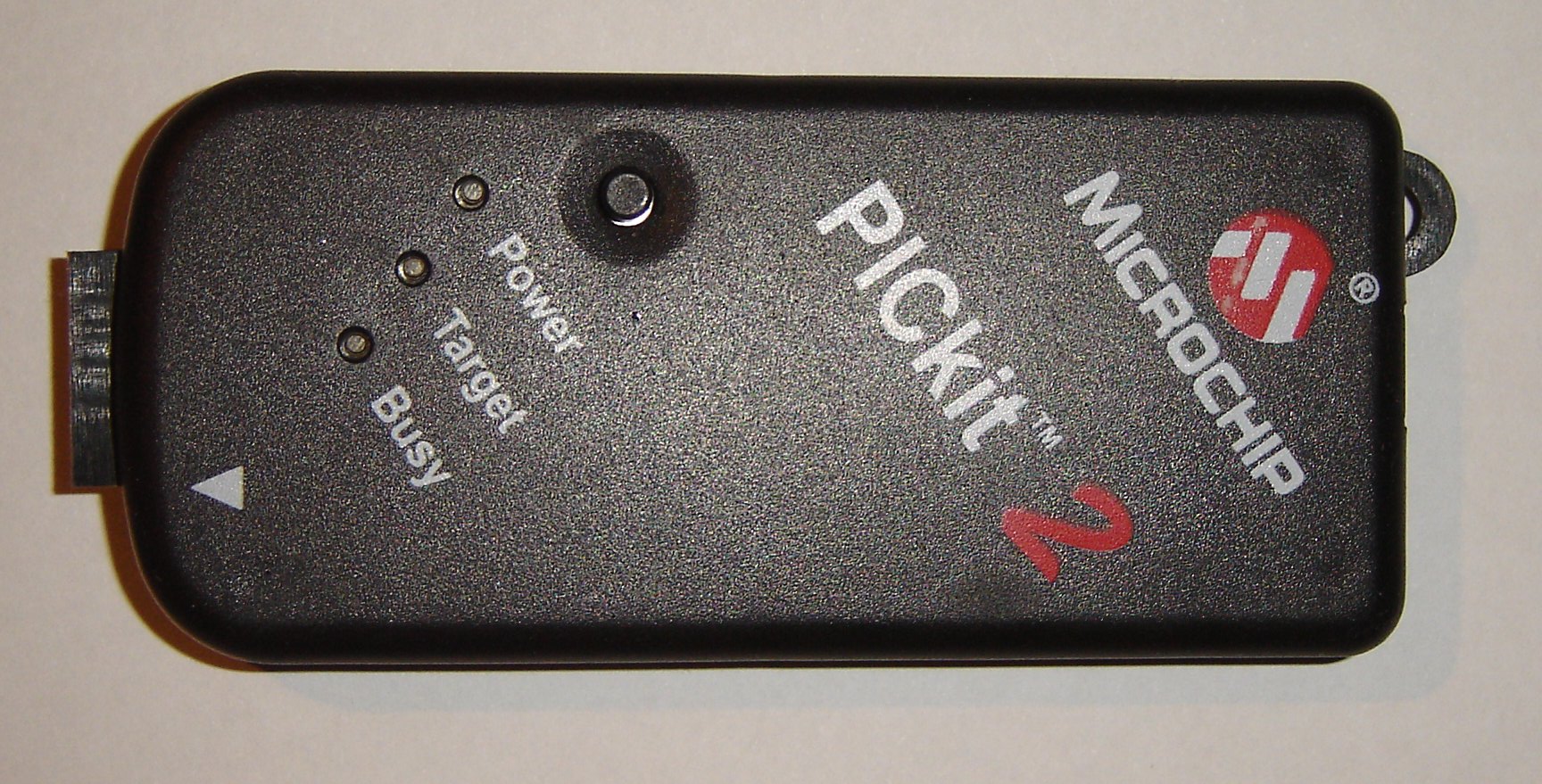
Photo: MichaelFrey, Wikimedia Commons, licensed under CC BY-SA 3.0; rotated 90°.

Updated version
This is an updated version of a tutorial I published in January 2021 for Debian 10. The step that added the i386 architecture has been dropped because it is no longer needed: pk2cmd builds as a native 64-bit program.
Required packages
The build needs a compiler and the libusb 0.1 development files:
sudo apt update
sudo apt install build-essential libusb-dev wget
Downloading the source
The pk2cmd v1.20 source code is on Microchip’s website:
wget https://ww1.microchip.com/downloads/en/DeviceDoc/pk2cmdv1.20LinuxMacSource.tar.gz
tar xzvf pk2cmdv1.20LinuxMacSource.tar.gz
cd pk2cmdv1.20LinuxMacSource
Tip
Microchip no longer maintains this package. It is a good idea to keep a copy of the archive in case the link disappears one day.
Building and installing
make linux
sudo make install
The build prints a number of warnings (-Wstringop-truncation, unused variable). They are harmless and do not affect the program.
make install copies the program to /usr/local/bin/pk2cmd and the list of supported chips to /usr/share/pk2/PK2DeviceFile.dat.
Setting up PATH
pk2cmd looks for PK2DeviceFile.dat in the directories listed in PATH, so /usr/share/pk2 has to be added to it:
echo 'export PATH="$PATH:/usr/share/pk2"' >> ~/.bashrc
source ~/.bashrc
There is no need to reboot. Running source ~/.bashrc or opening a new terminal is enough.
Note
Instead of changing PATH, you can pass the location of the file on every run with the -B option, e.g. pk2cmd -B/usr/share/pk2 -?v.
USB access without root (recommended)
make install makes pk2cmd a setuid root program (chmod u+s) so it can access USB without sudo. A cleaner solution is a udev rule that gives the logged-in user access to the PICkit 2 only (USB ID 04d8:0033):
echo 'SUBSYSTEM=="usb", ATTRS{idVendor}=="04d8", ATTRS{idProduct}=="0033", TAG+="uaccess"' | sudo tee /etc/udev/rules.d/70-pickit2.rules
sudo udevadm control --reload-rules
sudo chmod u-s /usr/local/bin/pk2cmd
Then unplug the programmer and plug it back in.
Checking the installation
pk2cmd -?v
Without a programmer connected, the output looks like this:
Executable Version:    1.20.00
Device File Version:   1.55.00
OS Firmware Version:   PICkit 2 not found


Operation Succeeded
With the programmer connected, “PICkit 2 not found” is replaced by the firmware version, e.g. 2.32.00. You can also check whether the system sees it with lsusb | grep 04d8.
Usage examples
Auto-detect the connected chip:
pk2cmd -P
Erase, program and verify a HEX file (the part name goes right after -P, with no space):
pk2cmd -PPIC16F628A -E
pk2cmd -PPIC16F628A -F program.hex -M
pk2cmd -PPIC16F628A -F program.hex -Y
The -T option powers the target circuit from the programmer, and -? lists all options.
Chip support
The device file (v1.55) dates from 2009, so newer PIC microcontrollers are not supported. They need a newer programmer (PICkit 4/5, MPLAB Snap) and MPLAB IPE.
Uninstalling
sudo rm /usr/local/bin/pk2cmd
sudo rm -r /usr/share/pk2
sudo rm -f /etc/udev/rules.d/70-pickit2.rules
Finally, remove the export PATH="$PATH:/usr/share/pk2" line from ~/.bashrc.