Raspberry Pi Digital Clock in Python
Contents
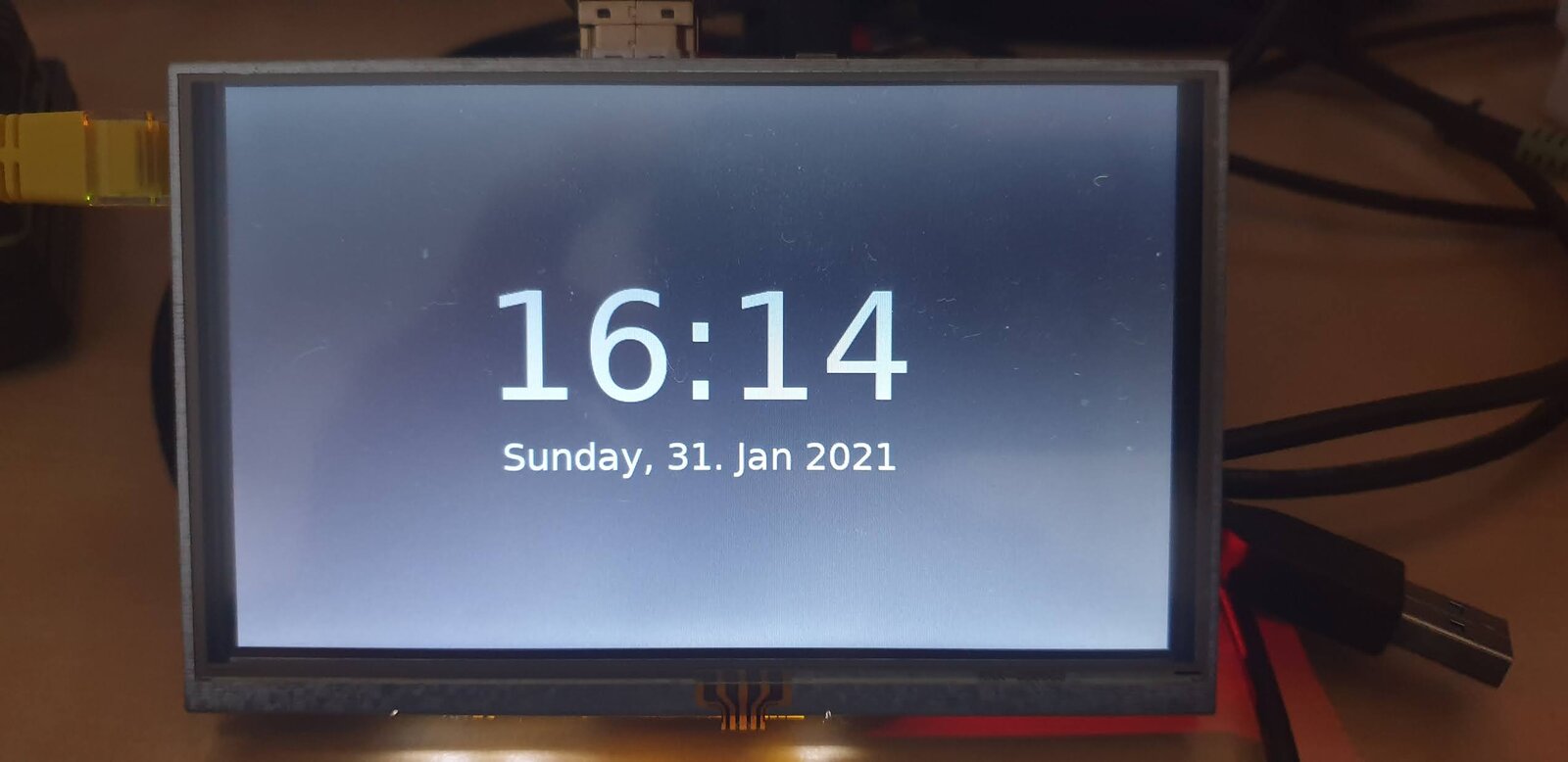
A Raspberry Pi with a small HDMI display as a digital clock. It is overkill for just a clock, but it is a good base for future projects: an info display that shows the temperature next to the time, the state of the house, or controls the lights.
The system is minimal: Raspberry Pi OS Lite, X11 without a desktop environment, the Openbox window manager, and a Python app written with PyGObject (GTK 3) that starts on its own at boot.
Updated in October 2026
The installation steps were refreshed in October 2026. Raspberry Pi OS has changed a lot since this was first published: there is no default pi user anymore, NetworkManager has replaced dhcpcd, and the Python 2 packages are gone. The steps are adapted to the current Raspberry Pi OS (Trixie).
What you need
- a Raspberry Pi (the clock was built on a Raspberry Pi 2),
- a Waveshare 5" HDMI LCD (800 × 480),
- a microSD card,
- a power supply for the Raspberry Pi.
Preparing the microSD card
The easiest way is Raspberry Pi Imager. Choose your Raspberry Pi model, Raspberry Pi OS Lite (the 32-bit version for a Raspberry Pi 2) and the card.
In the Customisation settings, fill in right away:
- the hostname,
- a username and password,
- the Wi-Fi network, if the Pi is not on a cable,
- the time zone and keyboard layout,
- enable SSH under Remote Access.
Warning
Raspberry Pi OS no longer has a default pi user with the password raspberry. If you do not set up a user in Imager, you will not be able to log in over SSH after the first boot.
Display settings
After Imager has written the card, insert it into the computer again. On the bootfs partition, open config.txt and add the settings for the Waveshare 5" display at the end of the file:
max_usb_current=1
hdmi_group=2
hdmi_mode=87
hdmi_cvt 800 480 60 6 0 0 0
hdmi_drive=1
On the running Raspberry Pi, the same file is at /boot/firmware/config.txt, no longer at /boot/config.txt.
Tip
If the picture does not fill the screen or looks blurry, add a space and video=HDMI-A-1:800x480M@60 to the end of the single line in cmdline.txt on the same partition.
First boot and upgrade
Insert the card into the Raspberry Pi, connect the display and power, and after a minute or two log in over SSH:
ssh user@hostname.local
Upgrade the system:
sudo apt update
sudo apt full-upgrade
sudo reboot
Static IP address (optional)
The simplest option is to reserve an IP address for the Raspberry Pi in your router. If you want to set it on the Raspberry Pi itself, since Raspberry Pi OS 12 this is done through NetworkManager instead of /etc/dhcpcd.conf. First find the connection name:
nmcli con show
Then set the address, adjusted to your network:
sudo nmcli con mod "Wired connection 1" ipv4.method manual \
  ipv4.addresses 192.168.1.50/24 ipv4.gateway 192.168.1.1 \
  ipv4.dns "192.168.1.1 8.8.8.8"
sudo nmcli con up "Wired connection 1"
If you are connected over SSH, the connection will drop. Reconnect to the new address.
Console autologin
sudo raspi-config
Choose System Options → Boot / Auto Login → Console Autologin, then Finish.
Installing X11, Openbox and PyGObject
sudo apt install --no-install-recommends xserver-xorg xinit x11-xserver-utils openbox
sudo apt install python3-gi python3-gi-cairo gir1.2-gtk-3.0 git
That is all the clock needs. If you also want a terminal, a task manager and appearance settings tools, add:
sudo apt install obconf lxterminal lxtask lxappearance
Note
The python-gi, python-gi-cairo and obmenu packages from the first version of these steps no longer exist because they were for Python 2. If they are listed in the command, apt aborts the whole installation.
Getting the app
The code is on GitHub. Besides the Python script, the app needs the theme.css file with the colours and font sizes, so the easiest way is to clone the whole repository:
mkdir -p ~/Projects/python
git clone https://github.com/ebaketa/digital_clock.git ~/Projects/python/digital_clock
Starting X and the clock automatically
X starts automatically after login on the first console. Add this to the end of ~/.profile:
if [ -z "$DISPLAY" ] && [ "$(tty)" = /dev/tty1 ]; then
    exec startx
fi
The easiest way is nano ~/.profile, without sudo, because the file belongs to you.
On startup, Openbox runs the ~/.config/openbox/autostart file:
mkdir -p ~/.config/openbox
nano ~/.config/openbox/autostart
Put this in it:
# disable screen saver and display power management
xset s off &
xset s noblank &
xset -dpms &

# run python digital clock
python3 ~/Projects/python/digital_clock/digital_clock.py &
Finally, reboot the Raspberry Pi:
sudo reboot
After boot, the Pi logs in on its own, starts X and Openbox, and the clock opens full screen. The F11 key toggles between full screen and windowed mode.
Updating the app
cd ~/Projects/python/digital_clock
git pull
sudo reboot